
storyboard to video ai
Turn your storyboard into a connected AI video workflow
Storyboard to video AI works best when every approved frame stays connected to the clip it creates. ShotSlate keeps image generation, first-frame animation, and composition together on one infinite canvas.
This guide is based on the current ShotSlate production workflow, including the image, video, and composition controls available in the product. Workflow visuals are labeled illustrations, not customer case studies.
Updated July 25, 2026
Current product workflow
From board to sequence without losing the source frame
The useful part of a storyboard is not just the grid of images. It is the intent behind each shot. ShotSlate keeps that intent visible as frames become clips and clips become a composition.
- 01
Frame the sequence
Create still frames with GPT Image 2, or bring in your own approved images, then arrange each shot beside its production notes.
Current image controls include seven aspect ratios and 1K, 2K, and 4K output sizes.
- 02
Animate approved frames
Connect an image as the first frame of a video node, describe the camera movement, and generate motion with Seedance 2.
Current video controls support text-to-video and image-to-video, 4–15 second clips, and six aspect ratios.
- 03
Build the cut
Send selected clips into a composition, reorder the sequence, trim timing, mute clips when needed, and preview before export.
Composition clips retain their source node, prompt, duration, trim points, and sequence position.
Workflow illustrations
See how every output remains traceable
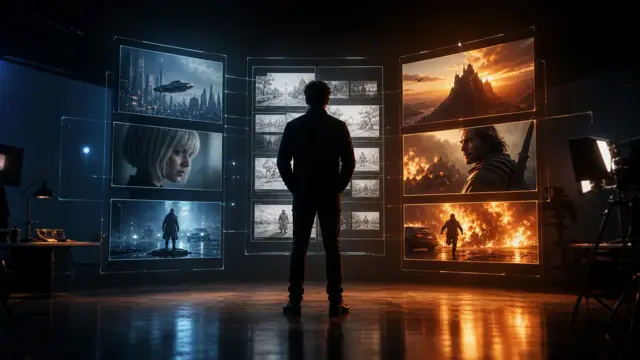
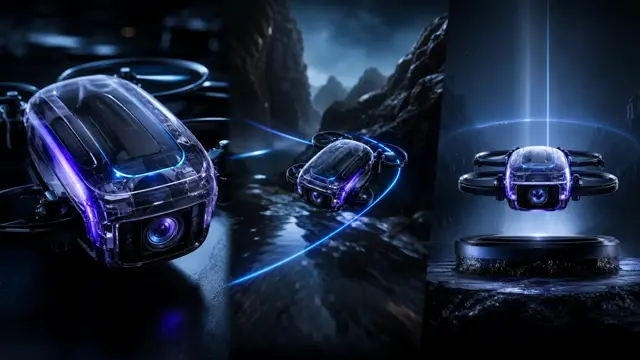
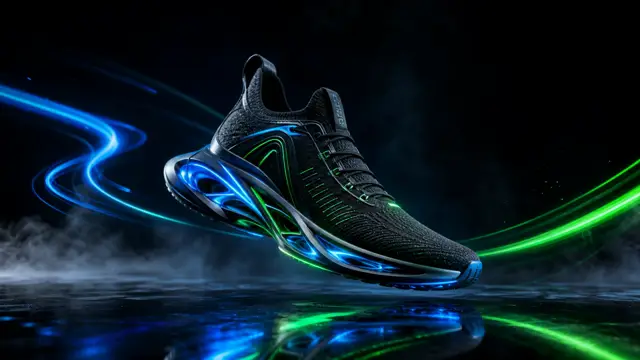
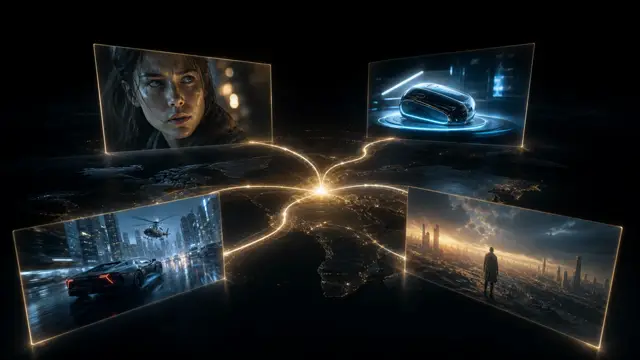
These illustrations reproduce the structure of the ShotSlate canvas and its semantic connections. They demonstrate product behavior; they are not presented as independent customer work.
Step 01
Map the visual sequence
Keep prompts, generated frames, and planned shots visible together before committing credits to motion.

Step 02
Preserve the first-frame relationship
A semantic connection records which image drives a clip, making revisions easier to trace than a folder of disconnected exports.

Step 03
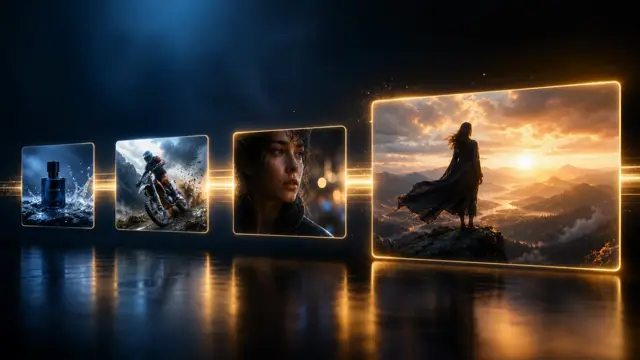
Sequence only the clips you approve
Move completed shots into the composition timeline, review their order and timing, then export the assembled video.

Production notes
Controls used in this workflow
These values come from the current ShotSlate implementation, not from a generic comparison of AI video products.
Limits to plan around
What storyboard to video AI does not solve automatically
Creator-directed, not one-click screenplay breakdown
ShotSlate currently gives you a visual canvas for directing shots. It does not claim to automatically turn a complete screenplay into a production-ready board.
Continuity still needs review
Reference frames and precise prompts help, but generative models can change faces, wardrobe, objects, lighting, or camera geometry between shots.
Resolution depends on model and plan
Seedance 2 Fast currently supports 480p and 720p. Full Seedance 2 adds higher resolutions on eligible plans. Available settings are shown before generation.
Common questions
Storyboard to video AI FAQ
Answers reflect the current product. This page is updated when supported models or workflow controls change.
ShotSlate Product Team
Reviewed against the current production implementation of ShotSlate image generation, video generation, semantic canvas connections, and composition export.
Keep the frame, the clip, and the final sequence connected
Start on a blank canvas, bring your own storyboard frame, or generate the first shot inside ShotSlate.