
gpt image 2 generator
GPT Image 2 generator for frames that move forward
Create a still frame from a prompt, guide revisions with references, choose aspect ratio and resolution, then keep the image connected to the video clip or composition it supports.
This guide is based on ShotSlate’s current GPT Image 2 image generation workflow. It covers text-to-image, reference-guided image generation, aspect ratio, resolution, and downstream canvas connections that are available in the product today.
Updated July 28, 2026
External verification
Model facts checked against public sources
These references are used for model context only. ShotSlate product claims on this page are limited to the controls available in the current implementation.
Current product workflow
From prompt to approved frame on one canvas
GPT Image 2 is most useful in ShotSlate when an image is treated as a production frame, not a detached download. The image can hold visual direction, references, settings, and the next video step in the same project.
- 01
Write a frame brief
Describe one image: subject, composition, visual style, lighting, and the shot’s role in the sequence. Keep the prompt focused enough to review as a single frame.
Current image generation accepts prompts up to 5,000 characters and stores the displayed brief with the image node.
- 02
Add reference images when needed
Connect approved images as references when the frame needs a visual anchor, product cue, mood board, or prior shot context.
Current image generation supports text-to-image and image-to-image behavior with up to nine reference image URLs.
- 03
Send approved frames forward
Use the generated still as a storyboard frame, a first frame for Seedance video generation, or a source asset in a composition.
ShotSlate keeps image result nodes, prompt context, reference connections, generated media, and downstream video nodes on the same canvas.
Frame brief checklist
What to specify before generating with GPT Image 2
A good image prompt should describe the exact frame you want to review. The goal is not to write a whole film, but to give the model enough visual direction to create a usable production still.
Need to animate the frame?
Once a still frame is approved, connect it to an image-to-video workflow instead of asking text-to-video to reinvent the composition.
Open Seedance image to videoWorkflow illustrations
Treat generated images as traceable production assets
These illustrations show how ShotSlate keeps image prompts, references, output frames, and downstream video steps connected. They demonstrate product behavior; they are not presented as independent customer work.
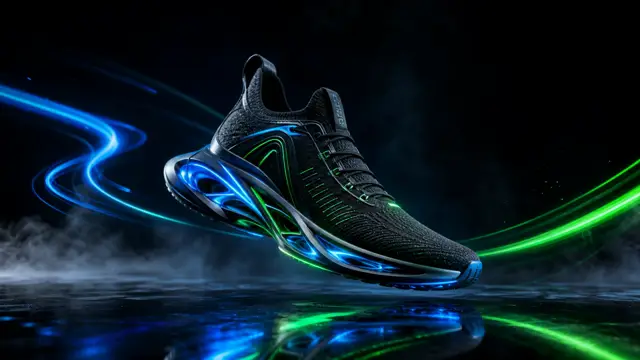
Step 01
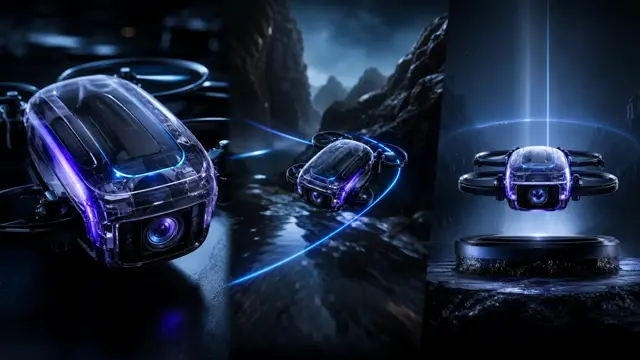
Generate a shot frame
Create one still frame with prompt, ratio, and resolution settings visible beside the result.

Step 02
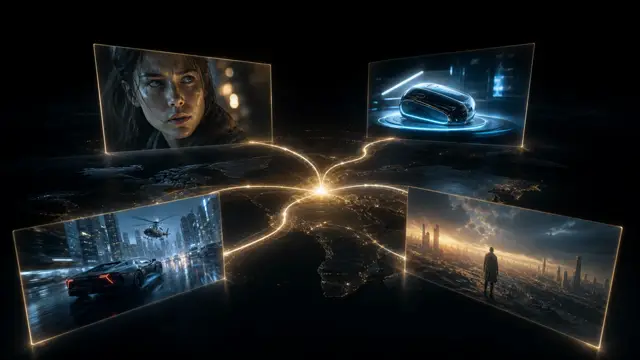
Use references with intent
Connect existing images as visual context, then keep the reference relationship visible for later review.

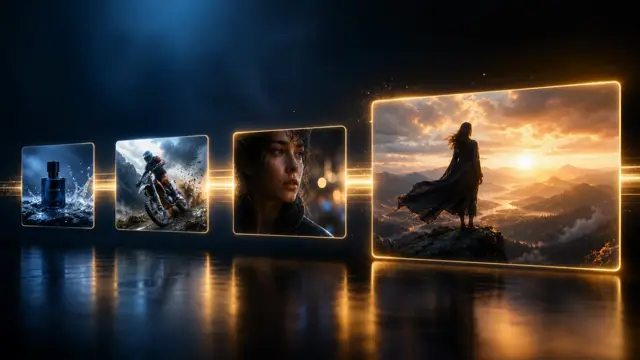
Step 03
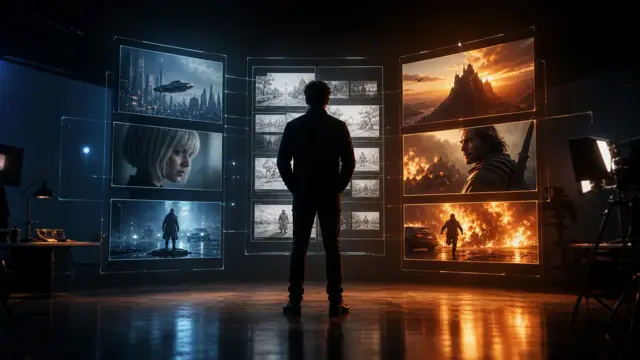
Move frames into motion
Send approved images into video nodes or compositions so the frame remains tied to the sequence.

Production notes
GPT Image 2 controls currently available
These values reflect the current ShotSlate implementation and plan gates, not every possible capability of the upstream model.
Limits to plan around
What this page does not promise
A generated image still needs review
GPT Image 2 can create useful frames, but creators should still check composition, artifacts, brand details, and whether the frame fits the sequence.
References guide the result; they do not guarantee cloning
Reference images can influence the output, but exact product markings, faces, typography, and fine details may still change and should be verified manually.
Resolution depends on plan access
ShotSlate exposes 1K on the free plan, 1K/2K on Basic, and 1K/2K/4K on Pro, Studio, and Scale plans.
Common questions
GPT Image 2 generator FAQ
Answers reflect the current ShotSlate implementation for GPT Image 2 image generation.
ShotSlate Product Team
Reviewed against OpenAI public GPT Image 2 documentation and the current ShotSlate implementation for image model ID, upstream model ID, prompt validation, reference image inputs, aspect ratios, image size limits, and plan-based resolution gates.
Create a frame you can actually use downstream
Generate a still image, review the result, keep its references visible, and connect approved frames into video or composition steps.