
seedance 2 image to video generator
Seedance 2 image to video generator for controlled motion
Turn an approved image into a Seedance 2 video clip without losing the frame, prompt, reference notes, or model settings that shaped the result.
This guide is based on ShotSlate’s current image-to-video workflow for Seedance 2 Fast and Seedance 2.0. It describes product-supported first-frame and reference workflows, not a generic list of every upstream model capability.
Updated July 26, 2026
External verification
Model facts checked against public sources
These references are used for model context only. ShotSlate product claims on this page are limited to the controls available in the current implementation.
Current product workflow
From source image to Seedance motion clip
Image-to-video works best when the first frame already contains the composition you want to preserve. ShotSlate keeps that source image connected to the generated clip so revisions stay understandable.
- 01
Choose the source frame
Upload a product image, use an existing storyboard frame, or generate a still image first. The frame should make subject, composition, and visual direction obvious before motion starts.
ShotSlate supports image and upload nodes that can connect into a video node as first-frame context.
- 02
Describe the motion
Write the camera move, subject action, pacing, and scene change you want Seedance 2 to infer from the source frame.
The video generation API requires a text prompt even when first-frame or reference assets are connected.
- 03
Generate and review the clip
Select Seedance 2 Fast or full Seedance 2.0, choose duration, aspect ratio, and resolution, then review the result before moving it into a composition.
Current controls support 4–15 second Seedance clips, six video ratios, and resolution options gated by model and plan.
First-frame control guide
What kind of image works best for Seedance 2?
The image is not just decoration. In an image-to-video workflow, it anchors the opening composition and gives the model concrete visual material to animate.
Need the full model overview?
If you want to compare Seedance 2 Fast and full Seedance 2.0 settings first, start with the broader Seedance 2.0 online guide.
Open Seedance 2.0 onlineWorkflow illustrations
Keep the image, prompt, and clip in the same project
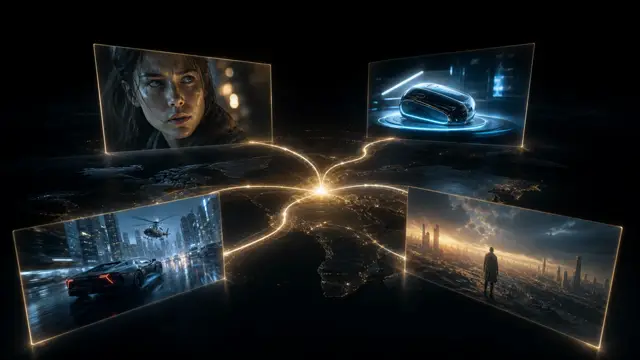
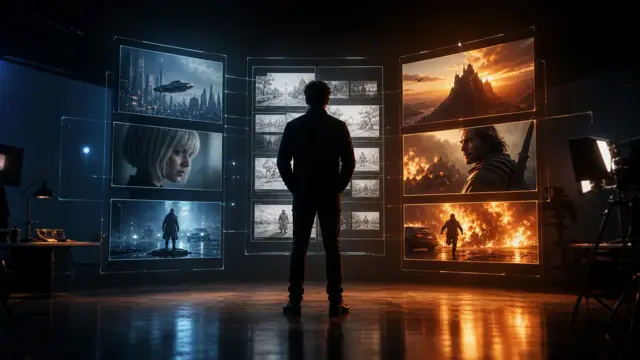
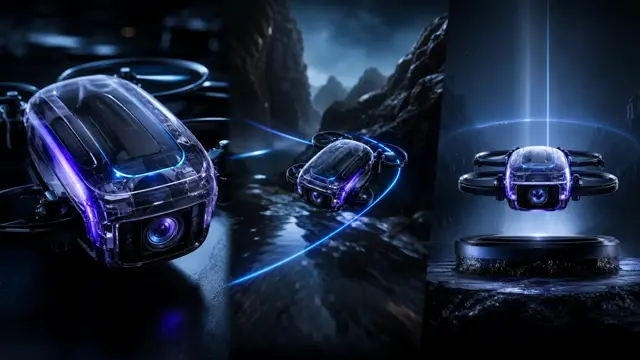
These illustrations show how ShotSlate connects a source image to a Seedance video node and then to composition. They demonstrate product behavior; they are not presented as independent customer work.
Step 01
Start with the approved frame
Use an uploaded image or generated storyboard panel as the visual anchor for Seedance motion.

Step 02
Keep references beside the prompt
Store reference images, text notes, and model settings near the generation node so the clip can be audited later.

Step 03
Sequence only approved clips
Move successful image-to-video results into a composition while preserving the source-frame relationship.

Production notes
Image-to-video controls currently available
These controls reflect the current ShotSlate implementation for Seedance video generation and plan-based resolution limits.
Limits to plan around
What image-to-video still needs from the creator
The first frame is not a full director
A source image anchors the opening look, but the prompt still needs camera motion, subject action, and any continuity constraints.
References are guidance, not guarantees
Seedance 2 can use visual references, but creators should still inspect identity, product details, text, lighting, and physical consistency.
Higher output tiers are gated
Seedance 2 Fast supports 480p/720p in ShotSlate. Full Seedance 2.0 and higher resolutions require an eligible plan.
Common questions
Seedance 2 image to video FAQ
Answers reflect the current ShotSlate implementation for Seedance image-to-video and reference-based video generation.
ShotSlate Product Team
Reviewed against ByteDance Seed public model materials and the current ShotSlate implementation for first-frame input, reference images/videos, Seedance model selection, duration, aspect ratio, resolution, and plan gates.
Animate the frame without losing the frame
Upload or generate an image, connect it to Seedance 2, describe one clear motion beat, and keep the resulting clip tied to its source.