
image to video ai generator
Image to video AI generator for clips that start from a real frame
Use a product photo, storyboard panel, uploaded asset, or GPT Image 2 frame as the visual anchor for motion, then review the generated clip before adding it to a composition.
This guide is based on ShotSlate’s current image-to-video workflow. It covers uploaded images, generated frames, first-frame connections, prompt-driven motion, Seedance video generation settings, and composition handoff that are available in the product today.
Updated July 28, 2026
External verification
Model facts checked against public sources
These references are used for model context only. ShotSlate product claims on this page are limited to the controls available in the current implementation.
Current product workflow
From still image to reviewed AI video clip
Image-to-video searchers usually want more control than text-only video. ShotSlate treats the source image as the clip’s first-frame anchor, then keeps the prompt, settings, output, and edit path visible on one canvas.
- 01
Start from a usable image
Upload an image, pick an existing asset, or generate a still frame first. The image should already communicate subject, framing, environment, and visual style.
ShotSlate supports generated image nodes and uploaded image assets that can connect into a video node as first-frame context.
- 02
Add one motion brief
Write a short prompt for the action, camera movement, pacing, and continuity constraints instead of asking the model to invent a full scene.
The current video generation API accepts a prompt, firstFrameUrl, mode, model, duration, aspect ratio, and resolution.
- 03
Review before editing
Check whether the clip preserves the important parts of the image, then move only approved outputs into the composition timeline.
ShotSlate stores generated video outputs beside their source frame, prompt context, model settings, and downstream composition clips.
Image-to-video control checklist
How to prepare an image before animating it
A good source image reduces ambiguity. The model still decides motion details, but the frame gives it a concrete starting point for subject, layout, lighting, and composition.
Need model-specific settings?
If you want the Seedance-specific version with model options, references, and start/end frame notes, open the dedicated Seedance page.
Open Seedance image to videoWorkflow illustrations
Keep the source frame connected to the motion result
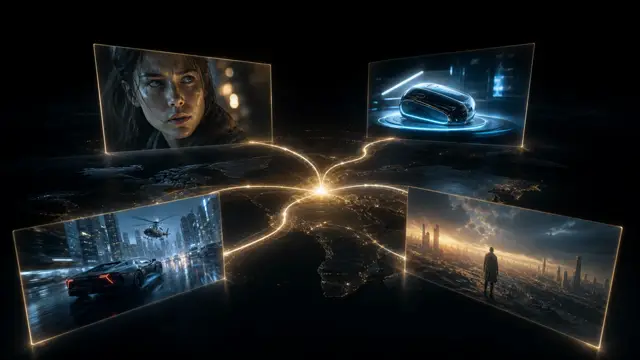
These illustrations show the ShotSlate behavior this page is about: an image becomes a source frame, the prompt describes motion, and the resulting clip remains traceable. They are product illustrations, not customer case studies.
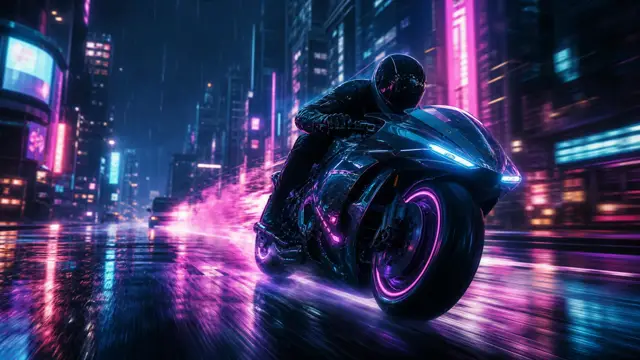
Step 01
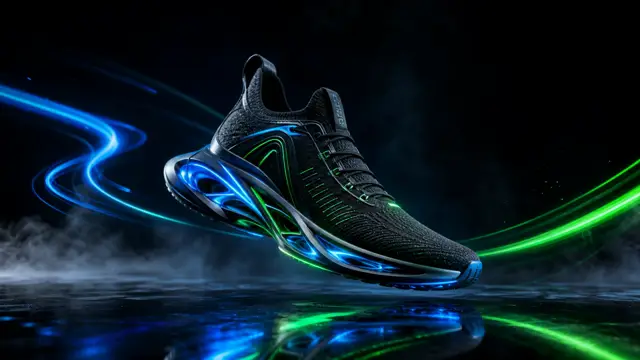
Anchor the clip with a real frame
Use an uploaded image, product photo, or generated frame as the opening visual state.

Step 02
Write motion around the frame
Keep the motion prompt beside the image, so the generated clip can be judged against the original creative intent.

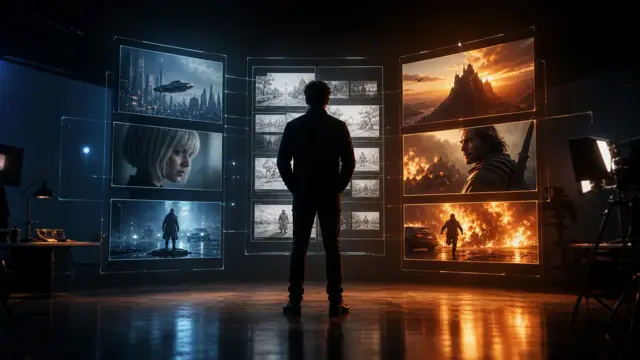
Step 03
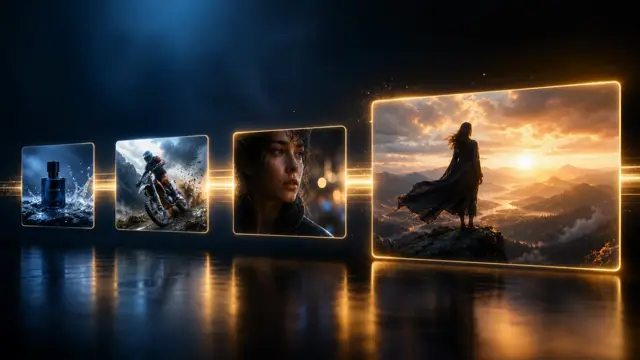
Move only approved clips forward
Send the selected image-to-video result into a composition while retaining its source image relationship.

Production notes
Image-to-video controls currently available
These controls reflect the current ShotSlate implementation, with Seedance as the active video generation path for new projects.
Limits to plan around
Important limits before using image-to-video
A source image improves control, but it is not a guarantee
The opening frame helps define the shot, but generated motion can still alter product details, faces, text, hands, lighting, or geometry.
The prompt still matters
An image alone does not define pacing, camera movement, subject action, or what should remain stable during the clip.
Output quality depends on model and plan
ShotSlate exposes Seedance 2 Fast and full Seedance 2.0 with plan-based availability for 480p, 720p, 1080p, and 4K output.
Common questions
Image to video AI generator FAQ
Answers reflect the current ShotSlate implementation for image-to-video generation.
ShotSlate Product Team
Reviewed against current commercial image-to-video product examples and the current ShotSlate implementation for uploaded/generated image inputs, first-frame connections, video prompt validation, Seedance model selection, duration, aspect ratio, resolution, and composition handoff.
Turn a still frame into a usable motion clip
Start with an image, define one motion beat, generate the video, and keep the source frame attached to the result.