
seedance 2.0 online
Use Seedance 2.0 online inside a production canvas
Generate motion with Seedance 2.0, keep prompts and references beside each clip, and choose the model, duration, ratio, and resolution that match the shot you are making.
This page separates official Seedance 2.0 model context from ShotSlate product behavior. ShotSlate currently exposes Seedance 2 Fast and full Seedance 2.0 video generation controls for online text, image, reference, and first/last-frame workflows.
Updated July 26, 2026
External verification
Model facts checked against public sources
These references are used for model context only. ShotSlate product claims on this page are limited to the controls available in the current implementation.
Current product workflow
Choose the Seedance workflow before you spend credits
Seedance 2.0 is useful when the generation input matches the job. ShotSlate keeps the model choice, references, prompt, and resulting clip connected so a video node is still traceable after generation.
- 01
Start from text or a frame
Use a written prompt for a fresh clip, or connect an approved image as the first frame when composition, product shape, or character pose matters.
ShotSlate video nodes support text-to-video and image-to-video modes with six aspect ratios.
- 02
Select Fast or full Seedance 2.0
Use Seedance 2 Fast for quick motion drafts. Use full Seedance 2.0 when the shot needs higher available resolution or a more deliberate final candidate.
Current product controls expose Seedance 2 Fast and Seedance 2.0 as separate video model options.
- 03
Keep the result connected
Generated clips stay beside the prompt, reference frame, model settings, and downstream composition choices on the canvas.
Project edges preserve first-frame, reference, prompt-context, and sequence relationships between nodes.
Seedance 2.0 settings guide
Which Seedance setting should you choose?
For SEO and for users, the honest answer is not “always highest quality.” Choose the model and settings that match the review stage of the clip.
Next step: use Seedance inside a storyboard workflow
If you already have planned frames, use the storyboard-to-video workflow so Seedance clips stay connected to their source images.
Open storyboard to video AIWorkflow illustrations
See Seedance 2.0 as a node, not a disconnected generator
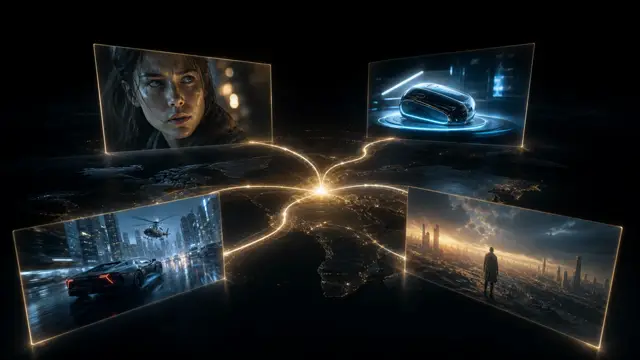
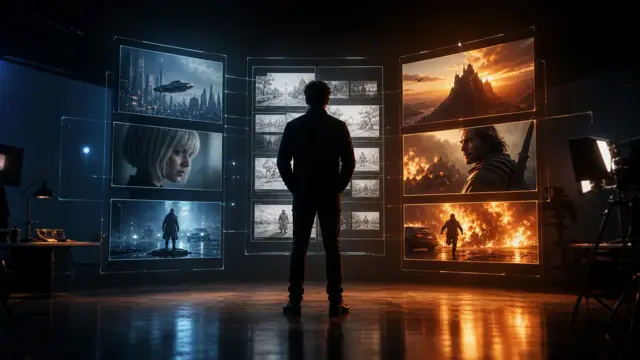
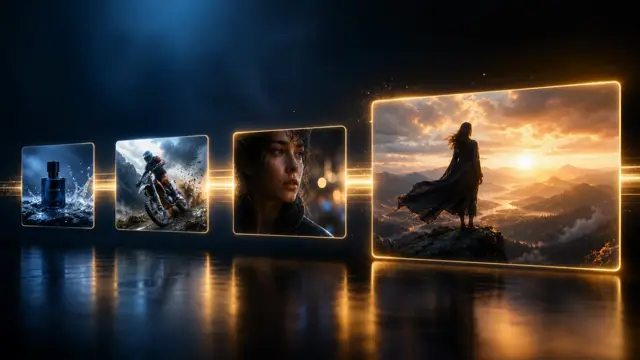
These illustrations show how ShotSlate places Seedance video generation beside the prompt, reference material, and composition path. They demonstrate product behavior; they are not presented as independent customer work.
Step 01
Generate from a prompt or approved frame
Start a Seedance video node from text, a first frame, or references instead of losing source material in a separate generator tab.



Step 02
Compare model settings before generation
Keep duration, ratio, resolution, and model selection close to the clip so each output can be reviewed with its actual settings.

Step 03
Move approved clips into composition
Once a Seedance clip works, connect it to a composition and keep the production trail visible for revisions.

Production notes
Seedance 2.0 controls currently available in ShotSlate
These values come from the current ShotSlate implementation and plan entitlements. They are not a complete list of every capability on every Seedance platform.
Limits to plan around
What this Seedance 2.0 online page does not overpromise
Not every official model input is exposed
ByteDance describes Seedance 2.0 as supporting text, image, audio, and video inputs. ShotSlate currently documents the online controls available in this product, not every upstream capability.
Higher resolution depends on plan
Free users can generate with Seedance 2 Fast at 480p. Full Seedance 2.0 and higher resolutions require eligible plans.
AI video still needs review
Seedance 2.0 improves motion and controllability, but creators should still check identity, physics, text, brand details, and scene continuity before using a clip.
Common questions
Seedance 2.0 online FAQ
Answers separate Seedance 2.0 model context from the ShotSlate controls currently available in production.
ShotSlate Product Team
Reviewed against ByteDance Seed public model materials and the current ShotSlate implementation for Seedance video model IDs, input modes, durations, aspect ratios, resolution options, and plan gates.
Generate the Seedance clip inside the project
Start with a prompt, connect a first frame or reference, choose Seedance 2.0 settings, and keep the output attached to the rest of your production canvas.