
seedance 2 text to video generator
Seedance 2 text to video generator for first-draft clips
Turn a written shot idea into a Seedance 2 video clip, then keep the prompt, model settings, generated output, and composition path connected in ShotSlate.
This guide is based on ShotSlate’s current text-to-video workflow for Seedance 2 Fast and Seedance 2.0. It focuses on text-prompted clips and does not claim image, audio, or reference inputs are required for this page’s workflow.
Updated July 28, 2026
External verification
Model facts checked against public sources
These references are used for model context only. ShotSlate product claims on this page are limited to the controls available in the current implementation.
Current product workflow
From text prompt to reviewed Seedance clip
Text-to-video is best for exploring a new shot before you have a source frame. ShotSlate keeps the prompt and generation settings visible so a clip can be revised instead of becoming an isolated export.
- 01
Write the shot prompt
Describe the subject, setting, action, camera movement, lighting, and mood. Keep the prompt focused on one clear clip instead of a full multi-scene video.
ShotSlate video generation requires a text prompt and supports text-to-video mode without a connected first-frame image.
- 02
Choose Seedance settings
Select Seedance 2 Fast or full Seedance 2.0, then choose duration, aspect ratio, and available resolution before the generation starts.
Current controls support 4–15 second Seedance clips, six aspect ratios, and resolution options gated by model and plan.
- 03
Review before sequencing
Check whether the generated clip follows the prompt, then revise the text or move approved clips into a composition.
ShotSlate keeps generated video nodes connected to prompts, settings, and downstream composition nodes.
Text prompt control guide
What to include in a Seedance text-to-video prompt
A strong prompt gives the model enough production direction without asking it to solve an entire film. The most useful text-to-video prompts describe one shot, one action, and one camera idea.
Need more visual control?
If the prompt result needs a stronger opening composition, use the image-to-video workflow with an approved first frame.
Open Seedance image to videoWorkflow illustrations
Use text prompts as production nodes, not throwaway inputs
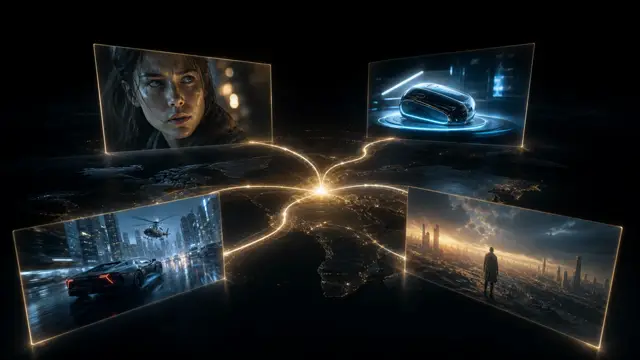
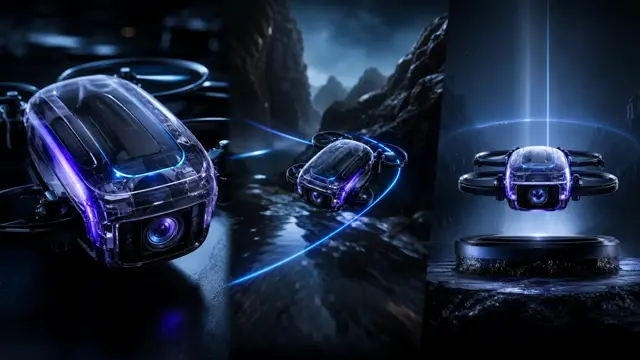
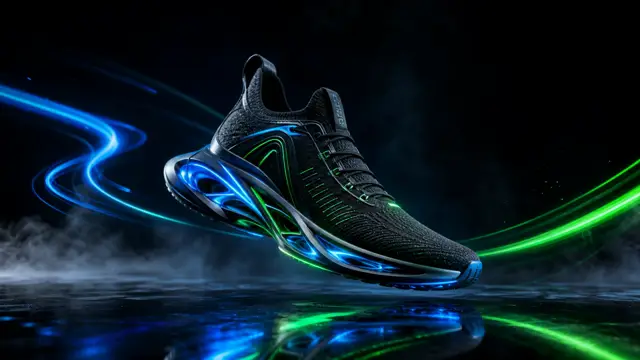
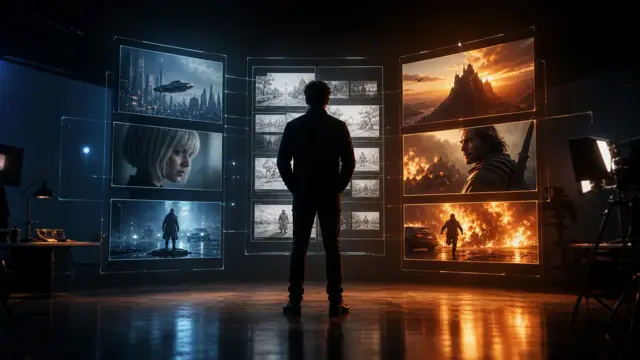
These illustrations show how ShotSlate keeps a text prompt, Seedance model settings, generated clip, and composition path in one project. They demonstrate product behavior; they are not presented as independent customer work.
Step 01
Start with a focused prompt
Write one shot direction and keep it visible beside the video node for revision.

Step 02
Compare prompt and result
Review the generated clip against the prompt, model, duration, ratio, and resolution that produced it.

Step 03
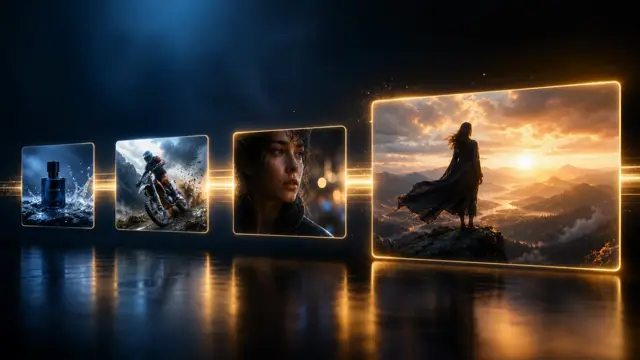
Move useful clips forward
Send only approved text-to-video outputs into a composition, then trim and sequence them with the rest of the project.

Production notes
Text-to-video controls currently available
These controls reflect the current ShotSlate implementation for Seedance text-to-video generation and plan-based resolution limits.
Limits to plan around
What text-to-video should not be expected to solve
Less visual control than first-frame generation
Text prompts are flexible, but they do not lock composition, product shape, character pose, or brand details as strongly as an approved source image.
One prompt is not a finished edit
Seedance 2 generates clips. ShotSlate helps organize and compose those clips, but creators still choose which outputs are worth keeping.
Resolution depends on model and plan
Seedance 2 Fast supports 480p/720p in ShotSlate. Full Seedance 2.0 and higher resolutions require an eligible plan.
Common questions
Seedance 2 text to video FAQ
Answers reflect the current ShotSlate implementation for Seedance text-to-video generation.
ShotSlate Product Team
Reviewed against ByteDance Seed public model materials and the current ShotSlate implementation for text-to-video mode, Seedance model selection, duration, aspect ratio, resolution, and plan gates.
Turn one clear prompt into a connected clip
Write the shot, choose Seedance settings, generate the clip, and keep every revision tied to its source prompt.